Please print out these instructions and
follow the steps on your computer.
 NOTE:
PLEASE DO NOT MAKE ANY OTHER CHANGES TO YOUR CONFIGURATION THAN
THOSE SPECIFIED IN THESE INSTRUCTIONS.
NOTE:
PLEASE DO NOT MAKE ANY OTHER CHANGES TO YOUR CONFIGURATION THAN
THOSE SPECIFIED IN THESE INSTRUCTIONS.
Illustrated instructions
- In Program Manager, select Run from the File
menu and type in WINSETUP /Z
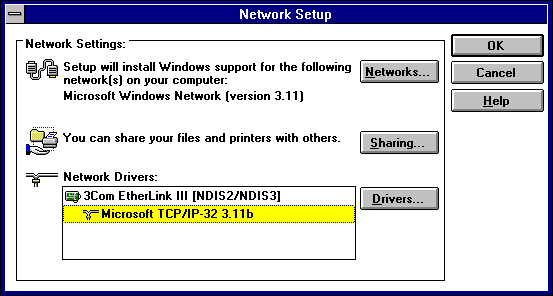
- In the Network Setup dialog window, click on the Drivers...
button.
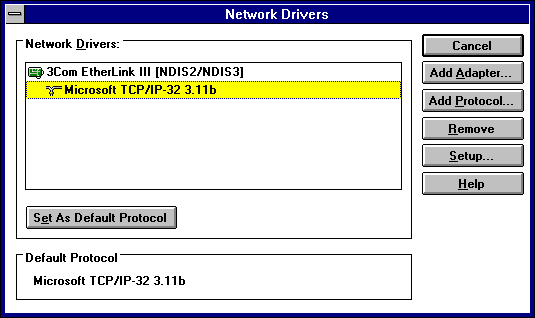
- In the Network Drivers dialog window, click on Microsoft
TCP/IP and click on the Setup... button.
- In the Microsoft TCP/IP Configuration dialog
window, click on the DNS... button.
- In the Microsoft TCP/IP - Connectivity Configuration
dialog window, select and remove the previous IP
addresses in the Domain Name Service [DNS] Search
Order section. Add the below IP addresses:
- Click on the OK button.
- In Program Manager, select Run from the File
menu and type in WINSETUP /Z
- In the Network Setup dialog window, click on the Drivers...
button.
- In the Network Drivers dialog window, click on Microsoft
TCP/IP and click on the Setup... button.
- In the Microsoft TCP/IP Configuration dialog
window, click on the DNS... button.

- In the Microsoft TCP/IP - Connectivity Configuration
dialog window, select and remove the previous IP
addresses in the Domain Name Service [DNS] Search
Order section. Add the below IP addresses:

- Click on the OK button.